


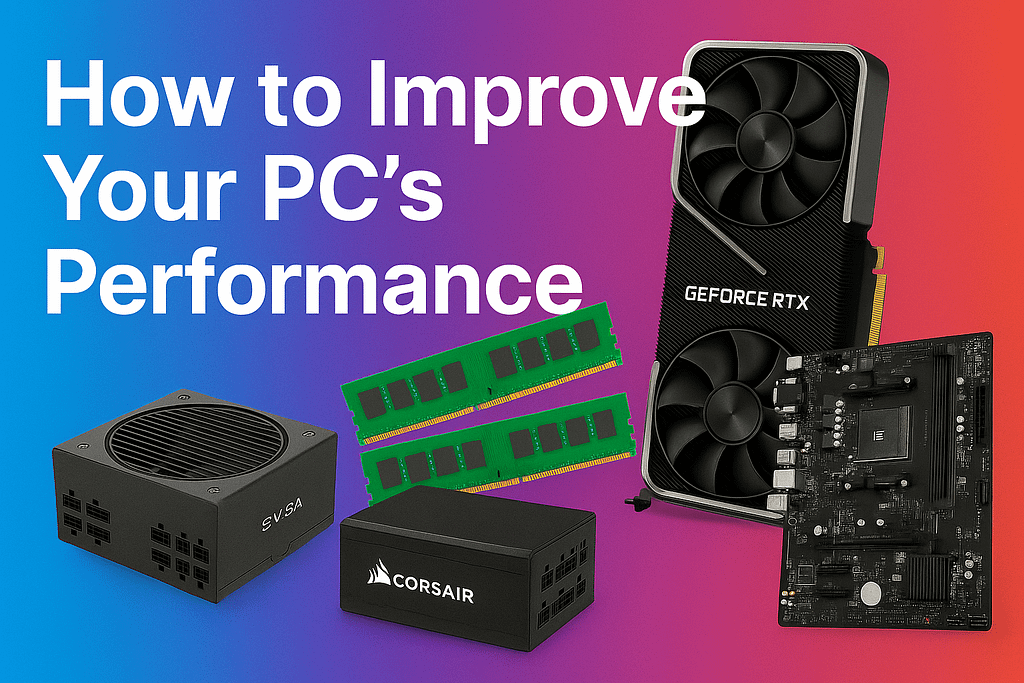
Updated October 2026. Your computer may feel slow, but that does not automatically mean it is obsolete. Before buying another PC, find out whether the limitation comes from storage, memory, background tasks, overheating, graphics performance or another cause.
The smallest suitable change may restore useful performance for far less than replacing an entire computer. Sometimes maintenance or software configuration is enough, and nothing needs to be purchased.
Start with evidence: Identify which task feels slow, what happens during that task and which component is responsible before committing money.
1. Why Does Your Computer Feel Slow?
A slow computer is a symptom, not a diagnosis. One problem can have several causes, and the right response depends on the task.
| Symptom | Possible Causes | Investigate First |
|---|---|---|
| Slow Windows startup | Mechanical drive, startup apps or storage faults | Drive type, health and startup processes |
| Browser tabs freeze | Insufficient RAM, browser extensions, background activity | Memory and process usage during freezes |
| Programs take a long time to open | Storage, memory pressure or background activity | Disk active time and RAM |
| Games stutter | CPU, GPU, memory, temperatures or settings | Measurements in the same game scene |
| Performance falls after several minutes | Thermal limits or sustained load | Temperatures, clocks and airflow |
| Unexpected restarts | Possible software, thermal or electrical instability | Stop unsafe operation; investigate logs and hardware |
2. Diagnose Your PC with Free Windows 11 Tools
Step 1 — Record Your Hardware
- Press Ctrl + Shift + Esc to open Task Manager.
- Open Performance and record CPU, RAM, disk and GPU models.
- Check Settings → System → Storage for available space.
- Write down exactly which programs or tasks are slow.
Step 2 — Reproduce and Measure
Use the application until the slowdown occurs. In Task Manager check CPU usage and individual processes, memory pressure, disk activity and GPU usage. If performance deteriorates with time, investigate temperatures using a trusted monitoring utility.
High utilization is a clue, not evidence of physical damage. An actively used GPU running near 100% can be normal; interpret results in context.
Step 3 — Try Reversible Fixes
- Disable only unnecessary startup apps that you recognize.
- Close unneeded background programs.
- Install Windows updates and appropriate drivers from official sources.
- Review disk space and back up important files before removing anything.
- Use trusted security tools to investigate suspicious activity.
- Inspect ventilation and dust safely with the machine powered off.
- Restart and repeat the same workload to see if performance improves.
For more guidance, consult Microsoft’s Windows performance documentation.
3. Which Component Is Worth Upgrading?
| Part | When It May Help | Check Before Buying |
|---|---|---|
| SSD | Slow loading when using a mechanical HDD | SATA/NVMe support, physical format and backups |
| RAM | Memory is routinely exhausted during multitasking | DDR generation, capacity and DIMM/SO-DIMM format |
| GPU | Gaming or creative apps are graphics-limited | Power, size, software, VRAM and actual benchmarks |
| CPU | Verified processor-limited tasks | Socket, BIOS, motherboard, cooling and costs |
| Cooling | Measured thermal throttling | Temperature, airflow and safe maintenance |
| Power supply | Unsafe, faulty or insufficient for the system | Exact PSU model, quality, output and connectors |
Storage and Memory: Start with the Workload
Moving Windows from a mechanical hard drive to a suitable SSD may substantially improve loading and responsiveness. It will not automatically solve a GPU-limited game. Adding RAM can help when the system runs short, but check the exact generation and form factor first: DDR4 and DDR5 are not interchangeable.
GPU and CPU: Do Not Buy Based on Age Alone
A faster GPU is useful when graphics are demonstrably the constraint. For detailed testing, models and compatibility, see How to Choose the Right GPU in 2026.
A CPU should not be replaced simply because it is five years old. Measure performance in the software you actually use and compare compatible options. A platform replacement can be much more expensive than the processor price alone.
4. Compatibility Checks That Prevent Expensive Mistakes
- Motherboard: Exact model, CPU support and RAM specification.
- BIOS/UEFI: Required firmware for a CPU upgrade and safe update instructions.
- Memory: DDR generation, form factor, capacity limits and free slots.
- Storage: SATA, M.2 SATA and M.2 NVMe are not the same interface.
- Graphics: Physical clearance, auxiliary power, driver and platform support.
- PSU: Quality, age, continuous capacity and approved connectors.
- Cooling: Safe case airflow and sufficient thermal capacity.
Compatibility gate: Having a PCIe x16 slot does not by itself establish that every GPU is appropriate. Check the complete system.
5. Repair, Upgrade or Replace the PC?
| Situation | Decision to Evaluate |
|---|---|
| One measured storage or RAM constraint | Targeted upgrade before full replacement |
| Verified GPU or CPU bottleneck | Compatible, benchmark-supported upgrade |
| Several major parts need replacing | Compare complete upgrade cost with another PC |
| Unsafe electrical fault or serious damage | Qualified repair assessment; replacement if appropriate |
| Essential security or software requirements cannot be met | Assess supported upgrade paths or replacement |
A Simple Illustrative Budget
Suppose a compatible SSD costs ¥9,000 and additional RAM costs ¥8,000. The combined ¥17,000 may be preferable to a hypothetical ¥100,000 replacement PC, but only if testing supports those upgrades. These are examples, not current store quotations; consider labor, reliability, warranties and expected remaining life.
6. Can Used PC Parts from Japan Be Better Value?
Japan can provide access to older compatible components, especially where local availability is poor. A second-hand processor, memory module or GPU may extend a computer’s useful life on a limited budget. Japan is not automatically cheaper: shipping, duties, warranty and returns can erase the apparent saving.
中古 means used; it does not mean certified refurbished. Inspect the actual listing, model, photographs, test information, seller history and return terms. Be especially cautious with used power supplies of uncertain history and SSDs without credible drive-health data.
7. Safe Tools and Maintenance
Suitable screwdrivers, good lighting, a clean work surface and correct electrostatic-discharge precautions make basic installations safer. Shut the machine down, disconnect external power and consult the manufacturer’s instructions. Some laptop internals require specialist handling. Never open a power supply: dangerous voltage can remain after disconnection.
8. Compare Compatible PC Parts on Amazon Japan
PC Upgrade and Repair Essentials
Choose only the component supported by your diagnosis, compatibility checks and budget.
Affiliate Disclosure
As an Amazon Associate, JapanDigitalHub earns from qualifying purchases. The Amazon Japan links below are affiliate links. Qualifying purchases may generate a commission at no additional cost to you. These are category searches, not verified product recommendations or guaranteed savings.
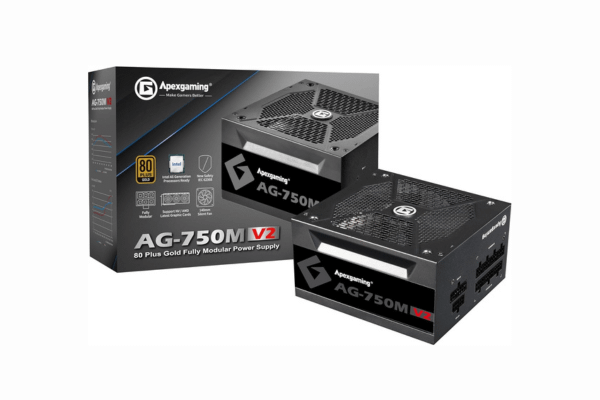
A replacement may be required for safety or the electrical requirements of a planned upgrade.
Check: Capacity, quality, connectors, dimensions and complete system demands.
Explore on Amazon Japan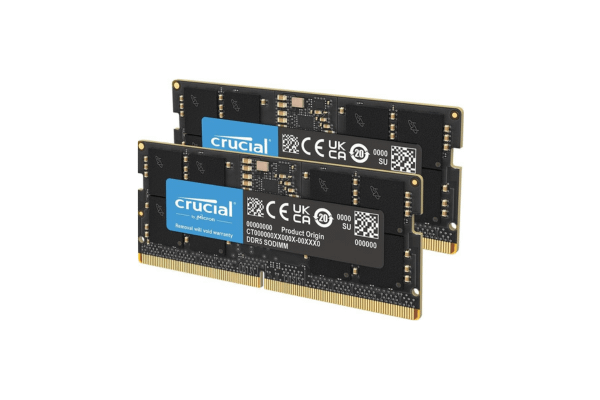
More memory may help when available RAM is routinely exhausted.
Check: DDR generation, desktop or laptop format, supported capacity and free slots.
Explore on Amazon Japan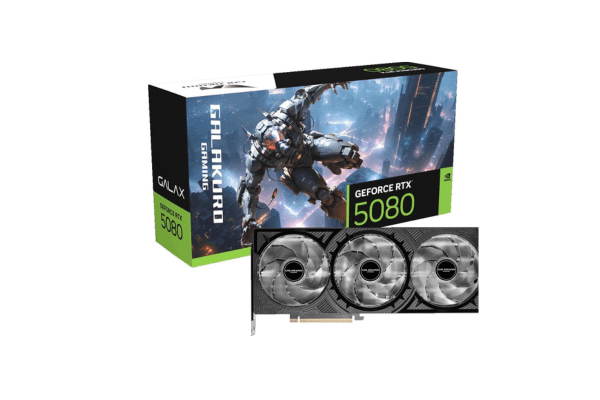
Consider a GPU only when gaming or creative tasks are demonstrably graphics-limited.
Check: Clearance, connectors, VRAM, power and independent workload benchmarks.
Explore on Amazon Japan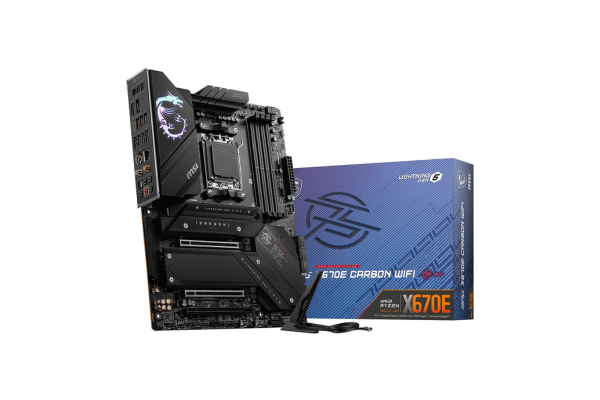
A motherboard may need replacement if it is faulty or a different CPU platform is genuinely required.
Check: Socket, chipset, BIOS, memory support and case format.
Explore on Amazon Japan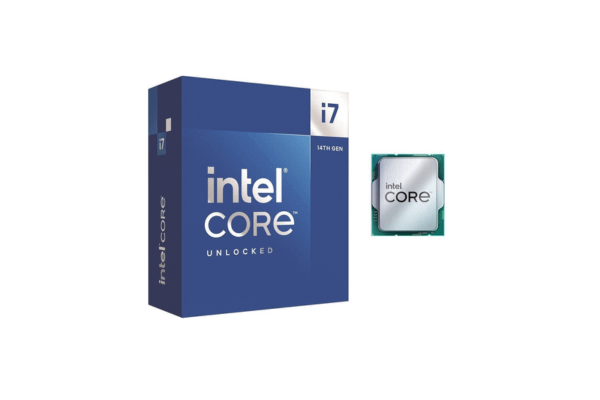
Compare CPUs only after confirming a processor-related limitation.
Check: Socket, firmware, cooling and total upgrade cost.
Explore on Amazon Japan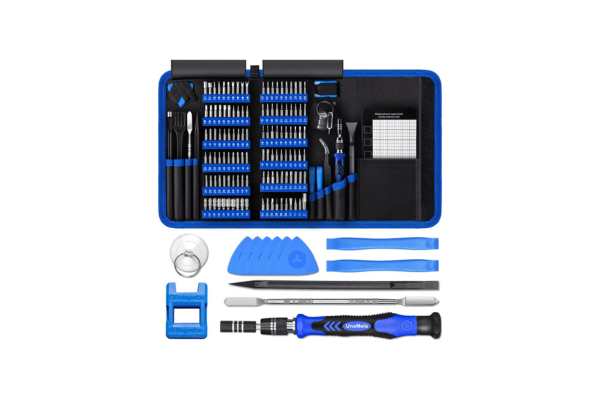
Suitable tools help carry out basic maintenance and component installations safely.
Check: Correct screwdriver sizes, quality and scope of the repair.
Explore on Amazon JapanAll six links retain the original Japan Amazon Associates ID. Listings, conditions, shipping eligibility, prices and warranties can change. General searches are not filtered to show only used items.
9. Final Checklist Before You Spend
- I can describe exactly how the PC is slow.
- I recorded CPU, RAM, disk and GPU behavior during the problem.
- I tried safe free fixes first.
- I know which upgrade addresses the actual limitation.
- I verified full hardware and firmware compatibility.
- I compared new and used options where appropriate.
- I calculated shipping, tax, repairs, warranties and returns.
- I compared the upgrade with replacing the computer.
Final Thoughts — Make Your Computer Useful for Longer
A slow computer is not automatically obsolete. A well-chosen SSD, memory module or other part can sometimes deliver substantial value; in other cases, a software fix or keeping the existing hardware is the soundest decision.
KYOTEN Decision Principle: Identify the binding constraint before committing resources. A product launch is not evidence that you need a new computer.
Sources and Editorial Transparency
- Microsoft — Windows performance troubleshooting
- Microsoft — Windows support
- Intel — Product support
- AMD — Product support
- NVIDIA — Product support
Editorial notice: Updated October 2026. Diagnostic methods are educational; example prices are not live market offers. Always verify manufacturer’s specifications before changing hardware. Qualified assistance is needed for electrical faults and hazardous repairs.